Setup
Text Forge currently supports Linux and Windows. Simply go to the Download Page, download the editor for your platform, and extract it wherever you want—there are no dependencies!
Note
Text Forge does not currently support other platforms due to platform-specific limitations. If you want to build the editor from source, you can find the guide here: Open Text Forge source in Godot
Now you can open the extracted Text Forge directory and run Text Forge using the Text Forge executable file:
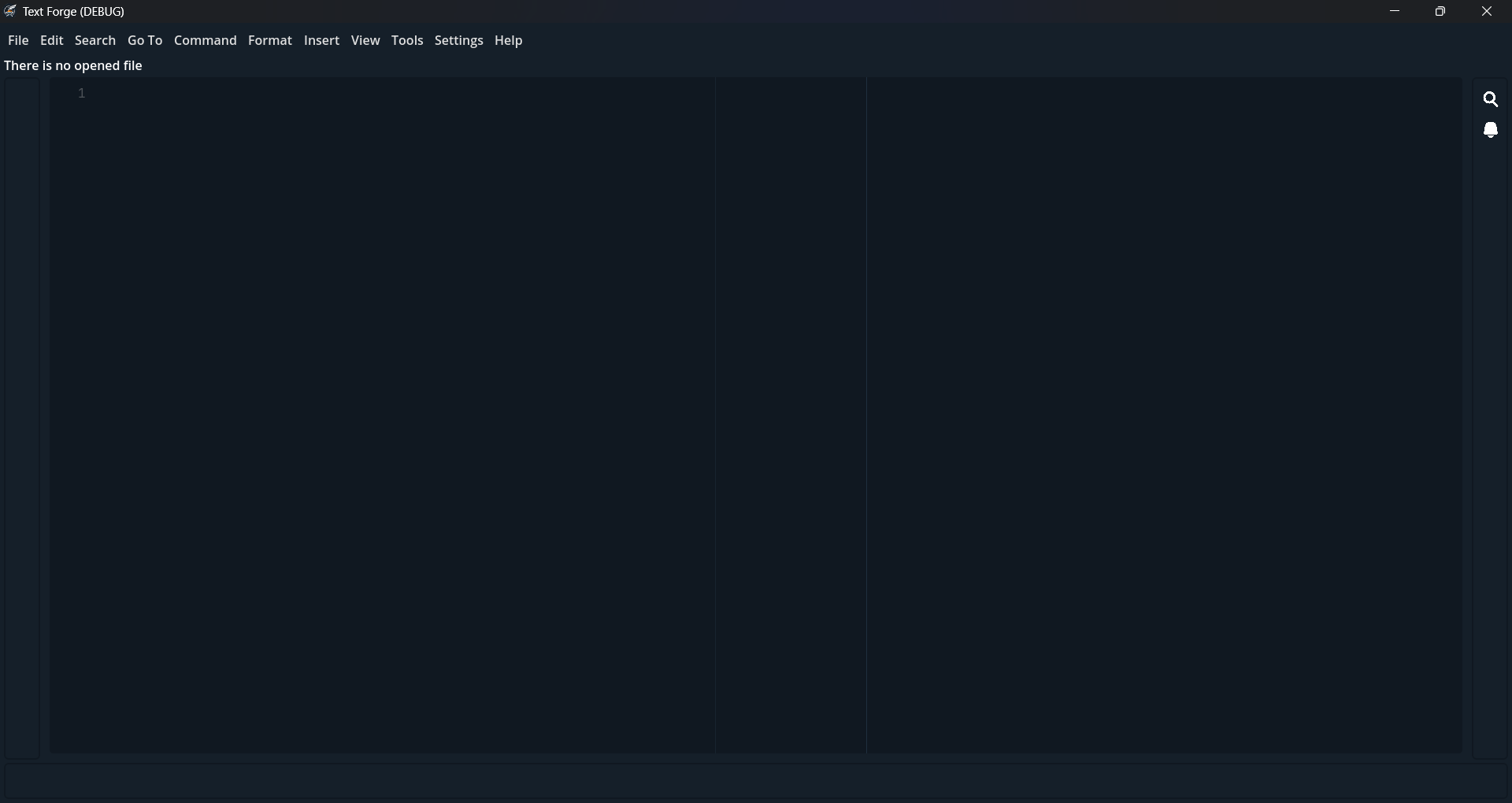
Install Modes
At this point, you have a very lightweight editor—it's more like a core. There are many plugged-in modules, such as action scripts, panels, etc., but you need another type of module to work with your editor. This type is called a Mode. You can learn more about modes, but for now, let's get your modes from the Text Forge Marketplace!
You can use Settings > Marketplace to find themes, extensions, and modes and install them with a single click. For modes, use the filter option in the top-right corner of the marketplace window and change it from All to Modes. Now you can see the available modes. Click on a mode to view its details, and if it's what you want, click the Install button and wait for the Package Installed! notification.
Tip
You can learn more in the mode installation guide.
Open a File
You now have a ready-to-use code editor! Let's open a file:
- In the top-left of the editor, you will see a list of menus. Click on the
Filemenu. - Click on
Openand select your file in the file dialog that appears. - Depending on your file type (extension), Text Forge will open it in one of these ways:
- You have one installed mode for this file: Text Forge will use the mode to load the file in the editor and apply the syntax highlighter from the mode.
- You have multiple installed modes for this file: A popup will appear, allowing you to select a mode to open the file. After selection, the first situation applies.
- You don't have any installed mode for this file: Text Forge will display a warning (visible in the notification panel) and open the file using UTF-8 encoding. With this behavior, you can open any file type encoded with UTF-8 without a mode (which covers a lot of files!), but there will be no syntax highlighter for these files.
- Well done!
Tip
You can open a file with the Ctrl + O shortcut or by using the command palette (Command > Command Palette in menus or Ctrl + P).
Note
On Windows, right-click on a file and click Open With, then select the Text Forge executable .exe. After this, you will be able to open files with Text Forge without launching the editor directly first.
Create a New Project
Note
Unlike most editors, you don't need to create a project before creating a file, so this section is optional.
If you've used other editors, you'll notice a different concept of a project. In other editors:
- A project is a folder.
- Project information is stored in a subfolder within that folder (e.g.,
.textforge).
In Text Forge:
- A project is a
.tfprojfile. - Project information is stored inside that file.
But why? We have specific reasons for this design:
| Feature | Folder-based projects | .tfproj projects |
|---|---|---|
| File Path Flexibility | Only files inside the folder | Any file from any path |
| Single-File Projects | Requires a folder | A single file is enough |
| Custom Project Settings | Scattered across multiple files | Centralized in .tfproj |
Overall, this design gives you more flexibility. You can keep parts of a larger project in different folders and switch between them in the editor with a single click.
Let's see Text Forge projects in action. You can create a project by going to Project > New Project. This opens the New Project window with the following fields:
- Project File — Path to your
.tfprojfile. - Name — Project name.
- Details — Optional project details.
- Icon — Optional project icon.
- Tags — Optional comma-separated list of tags.
- Include — Folders and files to add to the project.
- Exclude — Folders and files to exclude from the project.
When you press the Create button, the editor creates the project, and you can use Project > Open Project to open it. You can then navigate between project files in the Files panel on the left side of the editor. To automatically save files when switching between project files, enable Settings > Preferences... > Files > Save Files When Moving Between Project Files.
Tip
See also: Project menu
Customize Editor Appearance
You can customize the editor's appearance in multiple ways:
Using Themes
To find a theme, open Settings > Marketplace and set the package filter to Themes. You can click on a theme to see its preview, then install it with the Install button. Once the theme is downloaded and installed, a confirmation dialog will appear, letting you know you can enable the theme now. In the future, you can open Settings > Preferences and go to Editor UI > Theme to change the theme. If you want to see where themes are installed, use Settings > Open Data Folder and navigate to the themes/ folder.
UI Filter
Sometimes you need to adjust the editor's appearance just to add more brightness or reduce saturation. In these situations, you can use the UI Filter—a feature that applies customizations in just a few moments. To see how it works, open Settings > Preferences and go to Editor UI. In this section, you will find three options: Filter Hue Shift, Filter Saturation, and Filter Brightness. With this feature, you can customize the editor's appearance to any base color, saturation, and brightness and see the result dynamically.